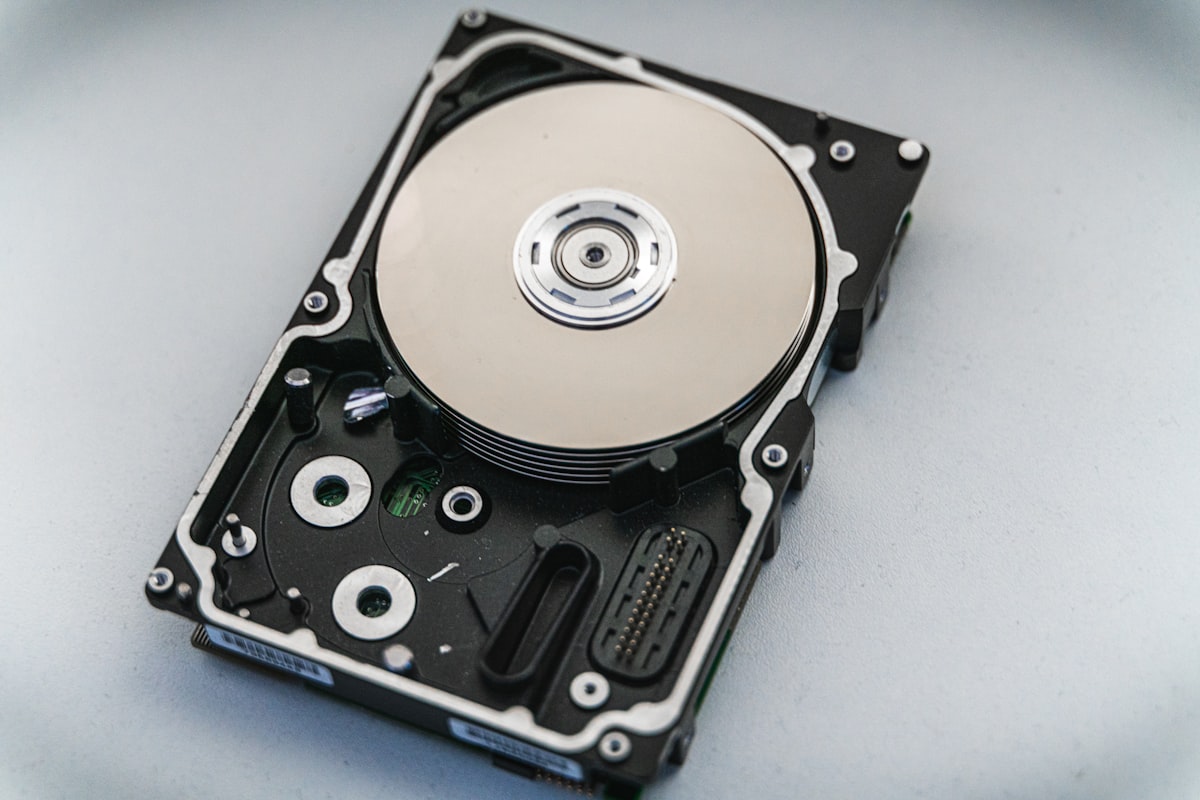
A modern NVMe SSD reads data at 7,000 MB/s. A traditional hard drive manages about 150 MB/s. That’s a 46x speed difference — the kind of gap that changes how a computer feels to use, not just on benchmarks but in every interaction. Booting, opening apps, loading files, compiling code, searching your file system — SSDs make all of it faster by an order of magnitude.
And yet, hard drives aren’t dead. In 2026, a 4TB HDD costs about $70. A 4TB NVMe SSD costs about $250. When you need lots of storage and don’t need lots of speed, that price difference still matters. The right choice depends on what you’re storing and how you use it.
Key Takeaways
- Every computer should have an SSD for its operating system and applications — this is the single most impactful upgrade for a slow computer
- NVMe SSDs are 5-7x faster than SATA SSDs — but for most tasks, both feel equally fast because the bottleneck is elsewhere
- HDDs still win for bulk storage — media libraries, backups, archives, and NAS storage where cost-per-terabyte matters more than speed
- SSD prices dropped roughly 40% in 2025 and remain competitive in 2026 — 2TB NVMe drives are now under $120
- Durability favors SSDs for most use cases — no moving parts means more resistance to physical shock, though both technologies last years under normal use
How SSDs Work vs How HDDs Work
Understanding the physical differences explains the performance gap.
An HDD is a mechanical device. Spinning magnetic platters rotate at 5,400 or 7,200 RPM while a read/write head moves across the surface — like a record player, except much more precise. Accessing data requires physically moving the head to the right position and waiting for the right sector to rotate underneath it. This mechanical latency (called seek time) is typically 5-10 milliseconds. That sounds fast until you compare it to an SSD.
An SSD has no moving parts. Data is stored in NAND flash memory chips — the same technology as your phone’s storage, scaled up. Accessing any data takes about 0.05 milliseconds (50 microseconds) for a SATA SSD, or as little as 0.02 milliseconds for an NVMe SSD. There’s nothing to spin up, nothing to seek. Every byte of data is equally fast to reach.
This difference is most dramatic for random access — reading lots of small files scattered across the drive. An HDD might manage 100-200 random reads per second (IOPS). An NVMe SSD does 500,000-1,000,000+ IOPS. When your OS is booting and loading hundreds of config files, libraries, and services simultaneously, this difference is what makes an SSD feel instant and an HDD feel sluggish.
For sequential reads and writes (reading one large file from start to finish), the gap is smaller but still enormous: 7,000 MB/s (NVMe Gen4) vs 150-200 MB/s (HDD).
Types of SSDs: SATA vs NVMe vs Gen 5
Not all SSDs are the same, and the alphabet soup of interfaces can be confusing.
SATA SSDs use the same interface as hard drives (the SATA protocol, originally designed for spinning disks). They max out at about 550 MB/s — the ceiling imposed by the SATA III interface, not the SSD hardware. They come in the familiar 2.5-inch laptop hard drive form factor. SATA SSDs are still dramatically faster than any HDD due to their superior random I/O performance, and they’re the cheapest SSDs available. A 1TB SATA SSD (Samsung 870 EVO, Crucial MX500) costs about $60-70.
When SATA SSDs make sense: upgrading an older laptop or desktop that doesn’t have an M.2 slot. If your computer only has SATA ports, a SATA SSD is still a transformative upgrade from an HDD.
NVMe SSDs use the PCIe bus through an M.2 slot (a small connector on the motherboard). They bypass the SATA bottleneck entirely.
- NVMe Gen 3 (PCIe 3.0): Up to ~3,500 MB/s. Still very fast and still sold — usually the cheapest NVMe option.
- NVMe Gen 4 (PCIe 4.0): Up to ~7,000 MB/s. The current mainstream standard. Best value per dollar in 2026.
- NVMe Gen 5 (PCIe 5.0): Up to ~14,000 MB/s on paper. Drives exist (Crucial T705, Samsung 990 EVO Plus) but run hot, cost significantly more, and provide minimal real-world benefit over Gen 4 for consumer workloads. They matter for professional video editing with 8K RAW footage and specialized database workloads, not for normal computing.
For most people buying a new SSD today: NVMe Gen 4 is the sweet spot. A Samsung 990 Pro, WD Black SN850X, or SK Hynix P41 Platinum in 2TB costs $110-140. These are outstanding drives by any measure.
When HDDs Still Make Sense
HDDs are not obsolete. They’re just no longer the right choice for your primary drive. Where they still win:
Bulk media storage. A 16TB Seagate Exos or Toshiba MG series drive costs about $220 — that’s roughly $14 per terabyte. The equivalent in SSD storage costs 5-8x more. If you have a large media library (movies, music, photos), surveillance footage, or research datasets measured in terabytes, HDDs are the practical choice.
NAS and server storage. Most home NAS setups use HDDs for primary storage with a small SSD cache for frequently accessed files. A 4-bay NAS with 4x 8TB HDDs gives you 24TB of usable storage (RAID 5) for about $500 in drives. The equivalent in SSDs would cost over $2,000.
Backups and cold storage. Data you need to keep but rarely access — tax records, old projects, system images — doesn’t benefit from SSD speeds. A solid backup strategy typically involves HDDs for local copies simply because the cost per terabyte allows you to keep more data backed up.
Budget constraints. If you’re building a system on a tight budget, a 500GB NVMe SSD for your OS ($35) plus a 2TB HDD for storage ($50) is an $85 total that gives you SSD boot performance and plenty of storage space. A 2TB NVMe alone would cost $110-120.
SSD Recommendations by Use Case
General Purpose / Office / Browsing
Samsung 870 EVO (SATA) or Kingston NV2 (NVMe Gen 4) — 500GB-1TB. Either will feel identically fast for basic tasks. The Samsung 870 EVO is one of the most reliable consumer SSDs ever made, with excellent endurance. The Kingston NV2 is a budget NVMe that’s cheap and good enough.
Budget: $35-70
Gaming
WD Black SN850X or Samsung 990 Pro — 2TB NVMe Gen 4. Games are getting huge (Call of Duty: Modern Warfare III is over 200GB), so 2TB is the realistic minimum for a gaming drive. NVMe speeds help with loading times, and DirectStorage (on Windows) can stream game assets directly from NVMe to GPU, reducing loading screens further. The real-world difference between a Gen 4 and Gen 3 SSD for gaming is about 1-3 seconds per load screen — noticeable but not dramatic.
Budget: $110-140 for 2TB
Creative / Video Editing
Samsung 990 Pro or SK Hynix P41 Platinum — 2TB or 4TB NVMe Gen 4. Video editing benefits from sustained write performance — importing footage, rendering timelines, and exporting final cuts all hammer the SSD with continuous large writes. The Samsung 990 Pro and SK Hynix P41 maintain consistent speeds under sustained workloads, unlike cheaper drives that slow down dramatically after the SLC cache fills.
For scratch disks (temporary working space), even a Gen 5 SSD is justifiable if you’re editing 8K ProRes footage professionally. For most people editing 4K, Gen 4 is more than sufficient.
Budget: $110-250 for 2-4TB
Server / NAS
SSD for cache, HDD for bulk. A small NVMe SSD (256-500GB) as a read/write cache in a NAS dramatically speeds up frequently accessed files while the bulk data sits on cheap HDDs. For all-flash NAS setups, the Crucial MX500 (SATA) or Samsung 870 EVO offer excellent endurance ratings.
For serious NAS builds, look at data center SSDs from the secondhand market — Intel D3-S4610, Samsung PM893, and similar drives designed for 24/7 operation with much higher endurance ratings than consumer drives. They show up on eBay for a fraction of retail price.
Durability and Lifespan
SSDs are rated by TBW (terabytes written) — how much data you can write before the NAND wears out. A typical 1TB consumer SSD is rated for 600 TBW. Writing 50GB per day (which is heavy usage — most people write 10-20GB daily), you’d hit that limit in about 33 years. In practice, most SSDs outlast the computer they’re installed in. Sudden death (controller failure) is more likely than NAND wear-out.
HDDs wear mechanically. Moving parts eventually fail — the mean time between failures (MTBF) for consumer HDDs is typically 300,000-1,000,000 hours, but these are statistical averages, not guarantees. The real-world failure rate for HDDs is about 1-2% per year for quality drives (Backblaze publishes detailed reliability statistics quarterly). Vibration, heat, and physical shock accelerate failure. An HDD that’s bumped while spinning can suffer a head crash — the read/write head contacts the spinning platter and destroys data. SSDs have no such vulnerability.
For portable use (laptops, external drives), SSDs are clearly more durable. No moving parts means a drop from desk height is survivable. An HDD might not be.
For stationary use in a server or desktop, both technologies last years with adequate cooling and stable power. The choice comes down to speed vs cost, not durability.
Understanding SSD Specs That Matter
NAND type affects performance, durability, and price:
- SLC (single-level cell): 1 bit per cell. Fastest, most durable, most expensive. Rarely found in consumer drives.
- MLC (multi-level cell): 2 bits per cell. Good balance. Mostly found in older or data center drives.
- TLC (triple-level cell): 3 bits per cell. The standard for modern consumer SSDs. Good performance, reasonable endurance.
- QLC (quad-level cell): 4 bits per cell. Cheapest per terabyte but slower sustained writes and lower endurance. Fine for read-heavy storage, avoid for write-intensive workloads.
Most drives use an SLC cache — a portion of the NAND temporarily operates in fast SLC mode for burst writes. When the cache fills (usually after 20-100GB of continuous writing), write speeds drop significantly. This matters for large file transfers but not for typical desktop use where writes come in small bursts.
DRAM cache matters for sustained performance. Drives with a DRAM cache (Samsung 990 Pro, WD Black SN850X, SK Hynix P41) maintain consistent performance under heavy workloads. DRAM-less drives (Kingston NV2, many budget options) are fine for light use but slow down under sustained loads. For a boot drive with normal desktop usage, DRAM-less is acceptable. For a primary drive handling large file operations or acting as a scratch disk, DRAM matters.
Controller quality is the wild card. The controller is the SSD’s brain — it manages wear leveling, error correction, garbage collection, and data mapping. Phison, Samsung (in-house), and Silicon Motion make the main consumer controllers. A bad controller can make good NAND perform poorly. Stick with established brands and models that have been reviewed by outlets like AnandTech, Tom’s Hardware, or TechPowerUp.
The Upgrade That Makes the Biggest Difference
If you have a computer with a hard drive as the boot drive — still common in budget desktops and older laptops — replacing it with an SSD is the most dramatic upgrade possible. It’s more noticeable than adding RAM, more noticeable than a CPU upgrade, more noticeable than a GPU upgrade (unless you’re gaming). A computer that takes 2 minutes to boot and 30 seconds to open Chrome will boot in 15 seconds and open Chrome instantly.
Cloning your existing drive to the new SSD (using free tools like Clonezilla or Macrium Reflect Free) preserves everything — your OS, applications, files, and settings. Alternatively, a fresh OS install on the new SSD is cleaner and often faster, but requires reinstalling applications.
For laptops: most laptops from the last 5 years have an M.2 NVMe slot. Older ones (2015-2019) might have a 2.5” SATA bay. Check your specific model on Crucial’s scanner tool or a teardown video on YouTube before buying.
Frequently Asked Questions
Can I use an SSD and HDD in the same computer?
Absolutely, and this is a very common configuration. Install your OS and frequently-used applications on the SSD for speed. Store your media library, documents, and less-used files on the HDD for capacity. Most desktop motherboards have multiple M.2 and SATA ports. Laptops sometimes have room for one M.2 and one 2.5” drive, or two M.2 drives — check your specific model.
How long does an SSD last?
Under normal consumer use (20-50GB written per day), a modern TLC SSD will last 10-15+ years before NAND wear becomes a concern. The more realistic risk is controller failure, which can happen at any age but is statistically uncommon. Either way, you should always have backups regardless of your storage technology. No storage device lasts forever.
Is NVMe Gen 5 worth the extra cost?
For the vast majority of users, no. Gen 5 drives cost 50-100% more than Gen 4, run hotter (often requiring heatsinks), and provide real-world benefits only in extremely specific workloads: professional video editing with uncompressed footage, large-scale database operations, or scientific computing with massive datasets. For gaming, general productivity, and even photo/4K video editing, Gen 4 is effectively indistinguishable from Gen 5 in daily use.
Do SSDs lose data when powered off for a long time?
NAND flash cells can lose charge over time without power, but the timeframe is measured in months to years at room temperature, not days or weeks. Enterprise specifications suggest data retention of at least 3 months at elevated temperatures without power, and at room temperature this extends to 1-2+ years. For archival storage that sits unpowered for years, HDDs or tape are more appropriate. For any drive you power on even occasionally (monthly), data retention is not a concern.
Should I defragment my SSD?
Never defragment an SSD. Defragmentation was necessary for HDDs because fragmented files required extra mechanical seeking. SSDs access all data equally fast regardless of physical location, so defragmentation provides zero benefit and wears out the NAND with unnecessary writes. Modern operating systems (Windows 10/11, macOS, Linux) automatically handle SSD optimization with TRIM commands — just leave the default settings alone.