Google Photos analyzes every image you upload. Dropbox stores your files on servers you don’t control. Your notes in Notion live on infrastructure managed by a startup that might get acquired, pivot, or shut down. None of this is inherently evil — these are good products built by competent teams. But every one of them comes with a trade-off: you hand over your data, your privacy, and your continuity to someone else.
Self-hosting flips that equation. You run the software. You own the hardware. Your photos, files, passwords, and notes live on a machine in your closet, not in a data center in Virginia. And in 2026, doing this is dramatically easier than it was even three years ago.
Key Takeaways
- Self-hosting is accessible to anyone comfortable with basic command-line work — you don’t need to be a sysadmin, but you do need to be willing to learn
- A used mini PC ($100-200) running Docker is the sweet spot for most beginners — more reliable than a Raspberry Pi, cheaper than building a server
- Start with one or two apps — Nextcloud for files, Immich for photos, or Vaultwarden for passwords — and expand from there
- Backups are non-negotiable — if your server dies and you have no backup, your data dies with it
- The honest trade-off: self-hosting trades money for time — cloud services are expensive but hands-off; self-hosting is cheap but requires maintenance
Why Self-Host at All?
The obvious reason is privacy. When you self-host, your data doesn’t leave your network unless you explicitly make it accessible. No company is mining your photos for ad targeting. No terms of service can change overnight to grant broader access to your files. No acquisition can result in your data being absorbed into a different company’s ecosystem.
But privacy isn’t the only reason, and for many people it isn’t even the primary one.
Cost savings are real at scale. Google One charges $30/year for 200GB or $100/year for 2TB. A family generating lots of photos and videos can easily exceed 2TB. A 4TB hard drive costs $80 and lasts years. Once you own the hardware, storage is essentially free.
Control and customization matter. Want to automatically organize photos by date and location? You can. Want to set up a media server that streams to every device in your house? Done. Want to run your own VPN so you can securely access your home network while traveling? Straightforward. Self-hosting gives you building blocks that proprietary services don’t.
Resilience against service shutdowns. Google has killed more products than most companies have created (rest in peace, Google Reader, Google Play Music, Google Domains, Stadia, and dozens more). When you self-host, the software keeps running as long as you maintain it. Open-source projects may lose active development, but the version on your server doesn’t stop working because someone’s business model changed.
It’s also just genuinely fun if you’re the kind of person who enjoys tinkering. There’s something satisfying about having a stack of services running on hardware you own, configured exactly how you want it.
Choosing Your Hardware
You don’t need enterprise-grade equipment. You need something that runs reliably, sips power, and has enough storage for your needs.
The Old Laptop or Desktop
Everyone has one gathering dust. If it was manufactured after 2015, it probably has enough power to run a dozen Docker containers without breaking a sweat. Advantages: free, already has a screen and keyboard for initial setup, built-in battery backup (laptops). Disadvantages: laptops aren’t designed to run 24/7 (heat management), power consumption is higher than purpose-built options, and they’re physically bulky.
This is a great way to experiment before committing money. Install Ubuntu Server or Debian, set up a couple containers, and see if self-hosting is something you want to invest in.
Raspberry Pi 5
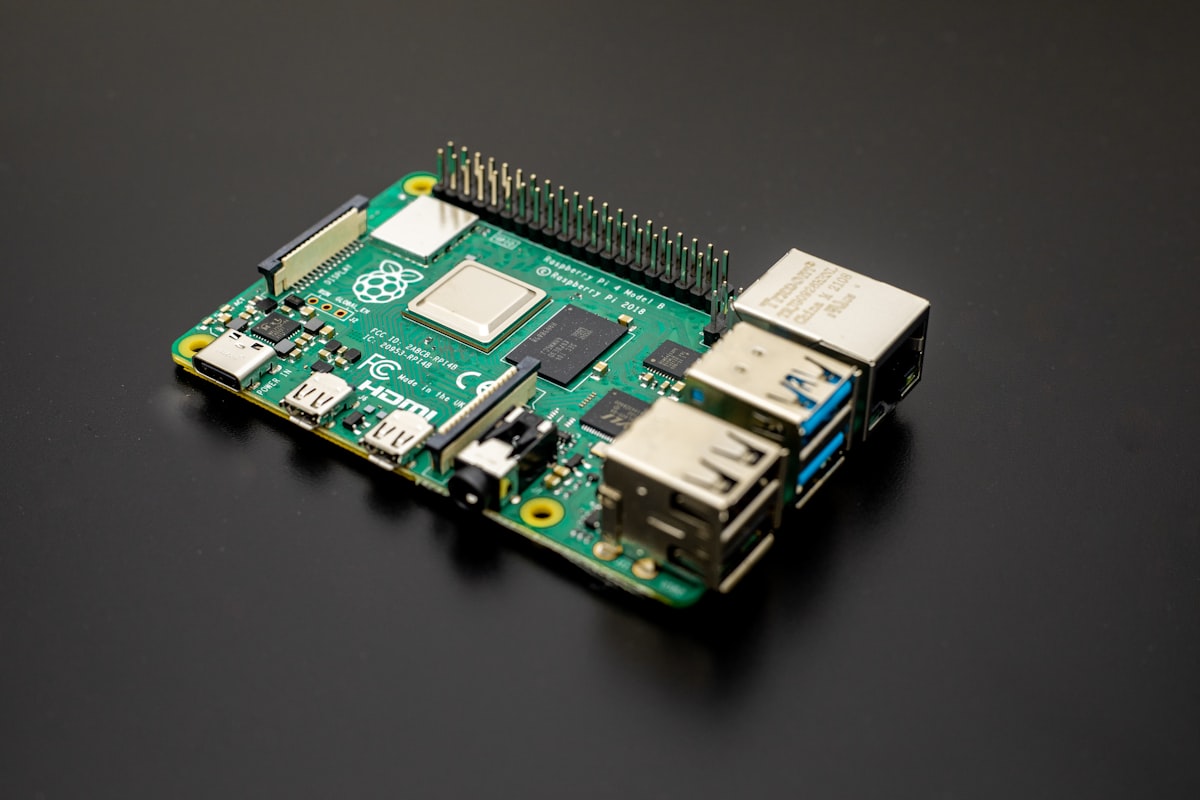
The Pi 5 costs $60 for 4GB RAM or $80 for 8GB. Add a power supply, case, and microSD card, and you’re looking at about $120 total. It’s tiny, silent, and draws around 5-12 watts under load (roughly $10-15/year in electricity).
The Pi is perfect for lightweight services: Pi-hole (network-wide ad blocking), Home Assistant (smart home control), Vaultwarden (password management), and small file shares. It struggles with heavier workloads — Nextcloud with multiple users is sluggish on a Pi, and photo processing for Immich is painfully slow due to the ARM CPU and limited RAM.
The other issue is storage. MicroSD cards are slow and wear out. You’ll want to boot from an NVMe SSD via a USB adapter or a Pi 5 NVMe HAT, which adds cost and complexity.
Mini PCs: The Sweet Spot
This is my recommendation for most beginners. A used or refurbished mini PC — something like a Lenovo ThinkCentre Tiny, HP EliteDesk Mini, or Dell OptiPlex Micro — costs $100-200 on eBay with an Intel i5, 8-16GB RAM, and a 256GB SSD. These are former corporate machines, built to run 24/7 in office environments, so reliability is excellent.
At 15-35 watts under load, they cost $20-40/year in electricity. They’re small enough to sit on a shelf, quiet enough for a living room, and powerful enough to run 20+ Docker containers simultaneously. Add a USB external drive or swap the internal SSD for a larger one, and you’ve got a serious self-hosting platform for under $300 total.
For more processing-heavy workloads — media transcoding with Plex/Jellyfin, running AI tools locally, or hosting services for a larger household — look for models with an i7 and bump the RAM to 16-32GB. Still well under $300 used.
NAS Devices
Synology and QNAP make dedicated Network Attached Storage devices that can run Docker containers. A Synology DS224+ ($300 + drives) gives you RAID storage, a user-friendly web interface, and Docker support. It’s the most beginner-friendly option but also the most expensive, and you’re somewhat locked into the manufacturer’s ecosystem.
If you just want file storage and media streaming and don’t care about running arbitrary Docker containers, a Synology NAS with their native apps is hard to beat for convenience. But for flexibility, a mini PC running your own stack is more versatile and cheaper.
Docker: The Foundation of Modern Self-Hosting
If you’ve heard of Docker but aren’t sure what it does: Docker packages applications and all their dependencies into isolated containers. Each container is like a lightweight virtual machine — it has its own filesystem, networking, and process space, but shares the host’s kernel so there’s minimal overhead.
Why this matters for self-hosting: instead of manually installing Nextcloud and all its dependencies (PHP, Apache, MariaDB, Redis), you run one command and Docker handles everything. Each service is isolated, so a misconfigured app can’t break another one. Updates are pulling a new container image. Rollbacks are switching back to the old one.
Docker Compose: Your Best Friend
Docker Compose lets you define multi-container applications in a simple YAML file. Here’s a minimal example that runs Nextcloud with a MariaDB database:
services:
  nextcloud:
    image: nextcloud:latest
    container_name: nextcloud
    restart: unless-stopped
    ports:
      - 8080:80
    volumes:
      - ./nextcloud-data:/var/www/html
    environment:
      MYSQL_HOST: db
      MYSQL_DATABASE: nextcloud
      MYSQL_USER: nextcloud
      MYSQL_PASSWORD: your-secure-password-here
    depends_on:
      - db

  db:
    image: mariadb:11
    container_name: nextcloud-db
    restart: unless-stopped
    volumes:
      - ./db-data:/var/lib/mysql
    environment:
      MYSQL_ROOT_PASSWORD: your-root-password-here
      MYSQL_DATABASE: nextcloud
      MYSQL_USER: nextcloud
      MYSQL_PASSWORD: your-secure-password-here
Save this as docker-compose.yml, run docker compose up -d, and you’ve got Nextcloud running on port 8080. The entire process takes about two minutes after Docker is installed.
Installing Docker
On Ubuntu or Debian:
curl -fsSL https://get.docker.com | sh
sudo usermod -aG docker $USER
Log out and back in for the group change to take effect. That’s it. Docker and Docker Compose are now installed and ready.
Starter Apps: Where to Begin
Don’t try to replace every cloud service at once. Start with one or two apps that solve a real problem for you, get comfortable, then expand.
Nextcloud — Your Personal Cloud
Nextcloud is the self-hosted alternative to Google Drive, Dropbox, and (to some extent) Google Workspace. File sync, calendar, contacts, notes, office document editing, video calls — it does a lot. Maybe too much, frankly. The core file sync is excellent. Some of the add-on apps are rough.
Start with just the file sync. Install the Nextcloud desktop client on your computers and the mobile app on your phone. Set up automatic camera upload. You now have a self-hosted Dropbox that you fully control.
Performance tip: Nextcloud can feel sluggish without Redis for caching and proper database tuning. The official Docker image doesn’t include Redis by default — add it as a separate container and configure Nextcloud to use it. The difference is noticeable.
Immich — Self-Hosted Google Photos
Immich is the standout self-hosted project of the past two years. It’s a Google Photos replacement that’s genuinely good — facial recognition, map view, timeline browsing, shared albums, and automatic mobile backup. The web interface is beautiful and fast. The mobile app (iOS and Android) works reliably.
The catch: Immich explicitly warns that it’s under heavy development and breaking changes can occur. In practice, updates have been smooth for most users, but this isn’t software you should set up and forget. Keep backups of your photo library independent of Immich’s database.
Immich wants more resources than most self-hosted apps. The machine learning features (face detection, object recognition, CLIP search) benefit from at least 4GB of RAM dedicated to Immich and a reasonably modern CPU. On a Raspberry Pi, you’ll want to disable the ML features.
Vaultwarden — Self-Hosted Password Manager
Vaultwarden is a lightweight Bitwarden-compatible server. It uses the same official Bitwarden apps and browser extensions, but the server runs on minimal resources — 50MB of RAM, basically nothing. If you want the security benefits of a password manager with the control benefits of self-hosting, Vaultwarden is the answer.
We covered password managers in depth in our password manager guide, including a Docker Compose example for Vaultwarden. If you’re already self-hosting other services, adding Vaultwarden to your stack is a no-brainer.
Critical requirement: Vaultwarden must be served over HTTPS. The browser extensions won’t work over plain HTTP (for good reason). Put it behind a reverse proxy like Caddy, which handles TLS certificates automatically.
Other Strong Candidates
Jellyfin — Open-source media server for movies, TV shows, and music. Like Plex but without the account requirement and licensing concerns. Free forever.
Pi-hole or AdGuard Home — Network-wide ad and tracker blocking. Every device on your network, including smart TVs and IoT devices, benefits without installing anything on the devices themselves.
Paperless-ngx — Document management system that OCRs your scanned documents, makes them searchable, and auto-tags them. Life-changing if you scan a lot of paperwork.
Home Assistant — Smart home hub that works with nearly every device brand and keeps everything local. No cloud dependency.
Uptime Kuma — Clean, simple monitoring dashboard that alerts you when your services go down. Essential once you’re running more than a couple of services.
Accessing Your Services Remotely
Running services on your home network is great, but you probably also want to access them from outside your house. There are several approaches, each with different security trade-offs.
Reverse Proxy + Domain Name
The standard approach: point a domain name at your home IP, forward ports 80 and 443 on your router, and run a reverse proxy (Caddy or Traefik) that routes incoming requests to the correct container. Caddy automatically handles Let’s Encrypt certificates, so you get HTTPS with zero manual certificate management.
If your ISP gives you a dynamic IP address (most do), use a dynamic DNS service like DuckDNS or Cloudflare’s API to keep your domain pointing at your current IP.
The risk: you’re exposing services to the internet. Any vulnerability in your applications or reverse proxy configuration is now accessible to anyone. This is manageable with proper configuration but requires attention to security updates.
Cloudflare Tunnel
Cloudflare Tunnel creates an outbound-only connection from your server to Cloudflare’s network. No port forwarding needed. No exposing your home IP. Cloudflare proxies requests through their infrastructure to your server. It’s free for personal use and dramatically simplifies the networking.
The trade-off: Cloudflare can inspect your traffic (they’re the TLS termination point). For most self-hosters this is acceptable, but it’s worth knowing.
Tailscale / WireGuard VPN
The most secure approach: don’t expose anything to the public internet. Instead, set up a VPN (Tailscale makes this trivially easy) and access your services only through the VPN. Your services are invisible to the internet. The downside is that every device you want to use needs the VPN client installed. For more on how VPNs work and when they make sense, see our VPN guide.
For most beginners, I’d recommend starting with Tailscale. It’s free for up to 100 devices, takes about five minutes to set up, and means you don’t have to think about firewalls, port forwarding, or TLS certificates for remote access. You can always add public-facing access later once you’re more comfortable with the security implications.
Backups: The Part Nobody Wants to Think About
Here is the uncomfortable truth about self-hosting: if you don’t have backups, you don’t have data. You have a single copy of data that is one hardware failure, one accidental deletion, or one bad update away from being gone forever.
The 3-2-1 rule exists for a reason: three copies of your data, on two different types of media, with one copy off-site.
In practice, a reasonable backup strategy for a home server looks like this:
- Primary data on your server’s drive
- Local backup to an external USB drive (automated nightly with rsync or borgbackup)
- Off-site backup to a friend’s server, a cloud storage provider (Backblaze B2 at $6/TB/month is cheap), or a second location you control
Automate everything. A backup strategy that requires you to remember to plug in a drive is a backup strategy that will fail exactly when you need it most.
For databases (MariaDB, PostgreSQL), file-level copies aren’t sufficient — you need proper database dumps. Most Docker-based services document their backup procedures. Follow them.
Security Basics
Self-hosting means you’re now responsible for security that a cloud provider used to handle. The fundamentals aren’t complicated, but they matter.
Keep everything updated. Docker images get security patches. Your host OS gets security patches. Set up a schedule — weekly is reasonable — to pull new container images and update the host system. Watchtower can automate Docker container updates, though some people prefer manual updates for critical services to avoid breaking changes.
Don’t run everything as root. Create a dedicated user for Docker and your services. If a container is compromised, the attacker shouldn’t get root access to the host.
Use strong, unique passwords for every service. Ideally managed by a password manager (Vaultwarden, if you’re feeling recursive). Enable two-factor authentication wherever possible.
Firewall your server. Only expose the ports you need. On Ubuntu, ufw (Uncomplicated Firewall) makes this straightforward: ufw default deny incoming, then ufw allow specific ports.
Monitor logs. At minimum, check your reverse proxy logs occasionally for suspicious requests. If you expose anything to the internet, automated scanners will find it within hours. This is normal and expected — what matters is that they can’t get in.
The Honest Trade-Offs
Self-hosting isn’t free. The money savings are real — running your own cloud is cheaper than paying for cloud subscriptions, especially with multiple terabytes of storage. But you pay in time.
You’ll spend hours on initial setup. You’ll troubleshoot when updates break things. You’ll worry about whether your backups actually work (test them). You’ll wake up to notifications that a container crashed at 3 AM. None of this is hard, exactly, but it adds up.
The people who stick with self-hosting long-term are those who enjoy the tinkering — or those for whom privacy and control are non-negotiable values. If you view server maintenance as a chore rather than a hobby, self-hosting will eventually feel like a burden. In that case, paying for a privacy-respecting cloud service (Proton, Tresorit, etc.) might be the better trade-off for you.
There’s also no shame in the hybrid approach. Self-host the things you care most about controlling (photos, passwords, files) and use cloud services for everything else. Most self-hosters end up here.
Frequently Asked Questions
How much does it cost to get started with self-hosting?
A used mini PC ($100-200), a large hard drive ($60-100 for 4TB), and your time. Ongoing costs are primarily electricity — a mini PC running 24/7 costs $20-40/year depending on your local rates. If you already have a spare computer, the monetary cost is essentially zero beyond electricity and an optional domain name ($10-15/year).
Do I need a static IP address from my ISP?
No. Dynamic DNS services update your domain’s IP address automatically when your ISP changes it. Cloudflare Tunnel and Tailscale bypass the issue entirely. Static IPs are a nice-to-have, not a requirement. Some ISPs offer them for an extra $5-10/month if you want one.
Is self-hosting secure enough for sensitive data like passwords?
Yes, if you follow basic security practices: HTTPS everywhere, strong passwords, regular updates, proper backups, and a firewall. Vaultwarden with a reverse proxy and TLS is arguably more secure than a cloud password manager for certain threat models, because your encrypted vault lives on hardware you physically control. The weak link is almost always the human — misconfiguration, forgotten updates, or weak credentials.
What happens if my server goes down while I’m away from home?
For most services, you just lose access until you fix it. Your phone’s photo backup pauses. Your file sync stops. For passwords, this is more critical — which is why Bitwarden (and Vaultwarden) cache your vault locally on every device. Even if the server is unreachable, you can still access your passwords. This is also why off-site backups matter: if the hardware fails catastrophically, your data survives.
Can I self-host if I’m on an apartment internet connection with no control over the router?
Yes, with limitations. Cloudflare Tunnel and Tailscale both work without any router configuration — they create outbound connections that bypass NAT. You won’t be able to do traditional port forwarding, but you don’t need to. The main constraint is that apartment internet connections sometimes have restrictive terms of service about running servers. Realistically, a home server pulling modest bandwidth is unlikely to be noticed, but it’s worth checking your lease or ISP agreement.