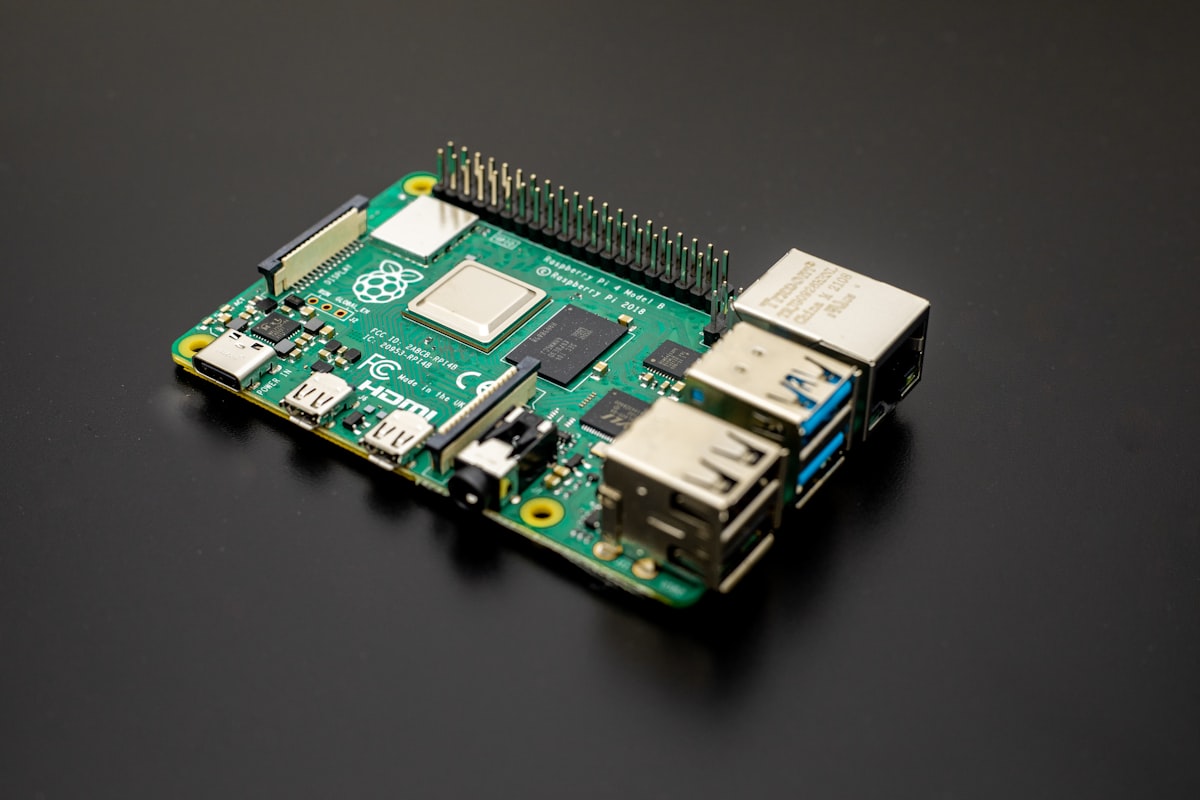
Most Raspberry Pi project lists include “build a weather station” and “make a smart mirror,” which sounds cool until you realize you’ll use either of them exactly twice before they collect dust. The projects here solve actual recurring problems. Each one justifies the $60-80 you spent on the Pi by saving money, replacing a subscription, or automating something tedious.
All projects assume a Raspberry Pi 5 (4GB or 8GB), though most work on a Pi 4 as well. You’ll also need a microSD card (32GB minimum, 64GB recommended), a USB-C power supply (27W for the Pi 5), and for most projects, an Ethernet connection. Total hardware cost for any single project: $80-150 depending on accessories.
Key Takeaways
- Pi-hole (network-wide ad blocking) is the single best Pi project — it takes 20 minutes to set up and improves every device on your network immediately
- The Pi 5 is powerful enough for lightweight server tasks but struggles with CPU-intensive workloads like photo AI processing or transcoding
- Most projects require basic command-line comfort — you’ll be SSH’ing into the Pi and running terminal commands
- A Pi with an NVMe HAT is a surprisingly capable mini server — faster and more reliable than running from a microSD card
- The Pi isn’t always the best tool — for serious self-hosting, a used mini PC is often better value (see our self-hosting guide)
1. Pi-hole: Network-Wide Ad Blocking
Difficulty: Easy | Time: 20 minutes | Extra hardware: None
Pi-hole acts as a DNS sinkhole — it intercepts DNS requests from every device on your network and blocks requests to known advertising and tracking domains. Unlike browser-based ad blockers, Pi-hole works on every device: your phone, smart TV, gaming console, IoT devices, and anything else connected to your network. No app installation required on any device.
Installation is a one-liner:
curl -sSL https://install.pi-hole.net | bashFollow the prompts, then change your router’s DNS settings to point to your Pi’s IP address. Every device on your network now has ads blocked at the DNS level.
Pi-hole blocks about 15-30% of DNS queries on a typical network. You’ll notice fewer ads on websites, faster page loads (blocked ads don’t download), and significantly less tracking. Smart TV ads, in-app ads on mobile, and IoT device telemetry all get caught.
The main limitation: Pi-hole can’t block ads served from the same domain as the content (like YouTube ads, which come from youtube.com itself). For those, you still need a browser-based blocker like uBlock Origin. Pi-hole and uBlock Origin together cover nearly everything.
2. Home Assistant: Smart Home Control
Difficulty: Medium | Time: 1-2 hours initial setup, ongoing configuration | Extra hardware: Zigbee/Z-Wave coordinator ($25-40) if using those protocols
Home Assistant is the open-source alternative to Alexa, Google Home, and Apple HomeKit ecosystems — except it supports all of them plus hundreds of other protocols and devices. It runs locally on your Pi, so your smart home data doesn’t go to any cloud service.
Install Home Assistant OS by flashing the image to your SD card (or NVMe drive). It provides a web interface for managing automations, dashboards, and device integrations. Over 2,500 integrations are available: Philips Hue, IKEA Tradfri, Nest thermostats, Ring cameras, Sonos speakers, weather services, and virtually every smart home product you can buy.
The real power is automations. “Turn on the porch light at sunset.” “If no motion is detected for 30 minutes after midnight, turn off all lights.” “When the temperature drops below 65°F, turn on the heater.” These are trivial to set up through the visual automation editor. Complex automations (multi-condition logic, templates, scripts) require YAML editing but aren’t difficult once you understand the syntax.
Honest assessment: Home Assistant has a learning curve. The initial setup is simple, but building a comprehensive smart home takes weeks of gradual configuration. The community is enormous and helpful, but the documentation can be overwhelming for beginners. It’s a hobby as much as a tool.
3. Jellyfin: Personal Media Server
Difficulty: Easy-Medium | Time: 30 minutes + library organization | Extra hardware: USB hard drive for media storage
Jellyfin is a free, open-source media server — think self-hosted Netflix for your personal movie and music collection. It organizes your media library, fetches metadata (posters, descriptions, ratings), and streams to any device with a web browser or a Jellyfin client app (available for Android, iOS, Roku, Fire TV, Apple TV, and more).
On a Pi 5, Jellyfin handles direct play (streaming without transcoding) for most formats at up to 4K. Hardware transcoding — converting video formats on the fly — is limited on the Pi. If your client devices support common formats (H.264, H.265), direct play works fine. If you need heavy transcoding (playing 4K HEVC content on a device that only supports H.264), the Pi will struggle. For that use case, a mini PC with an Intel Quick Sync GPU is a better fit.
Install Jellyfin via Docker (simplest approach):
docker run -d \
  --name jellyfin \
  -p 8096:8096 \
  -v /path/to/config:/config \
  -v /path/to/media:/media \
  --restart unless-stopped \
  jellyfin/jellyfin
Point it at your media folders, let it scan, and you’ve got a streaming server. The web interface at http://pi-ip:8096 works for management and playback. If you’re new to Docker, our Docker beginner’s guide covers the fundamentals.
4. Local NAS (Network Attached Storage)
Difficulty: Medium | Time: 1-2 hours | Extra hardware: USB hard drive(s) or NVMe HAT + NVMe SSD
A NAS turns your Pi into a shared file server accessible from every device on your network. Store files centrally, access them from any computer, phone, or tablet, and have one place to back up everything.
The simplest approach is OpenMediaVault (OMV), a NAS operating system that provides a web interface for managing storage, users, and shared folders. Flash OMV to your Pi’s SD card, connect your USB drives, and configure shares through the web UI. OMV supports SMB (for Windows/Mac file sharing), NFS (for Linux), and can run Docker containers for additional services.
For the best performance, use the Pi 5’s PCIe interface with an NVMe HAT (like the Pimoroni NVMe Base or Geekworm X1004). An NVMe SSD connected via PCIe is dramatically faster than USB-attached storage — you’ll get around 800 MB/s reads versus 300-400 MB/s over USB 3.0.
Realistic expectations: a Pi NAS is fine for a household of 2-4 people sharing documents, photos, and media. It’s not suitable for heavy multi-user simultaneous access or running complex NAS applications. For serious NAS needs, a Synology DS224+ ($300) or a custom build with TrueNAS provides a more robust experience. But for basic shared storage on a budget, the Pi works.
5. VPN Server with WireGuard
Difficulty: Medium | Time: 30-45 minutes | Extra hardware: None
Running a VPN server on your Pi lets you securely access your home network from anywhere. Unlike a commercial VPN service (which routes your traffic through someone else’s servers), a self-hosted VPN routes traffic through your own home connection. This is useful for accessing files, checking security cameras, using your Pi-hole DNS from your phone on cellular, or securely browsing on public WiFi.
PiVPN makes setup painless:
curl -L https://install.pivpn.io | bashChoose WireGuard (not OpenVPN — WireGuard is faster, simpler, and uses less battery on mobile). The installer handles key generation, firewall rules, and configuration. Create client profiles with pivpn add, scan the QR code with the WireGuard app on your phone, and you’re connected.
You’ll need to forward one UDP port (default 51820) on your router to the Pi’s IP address, and you’ll need a way to find your home IP if it changes. A free dynamic DNS service (DuckDNS, Cloudflare with a free domain) handles the latter.
Performance depends on your home internet upload speed. If your ISP provides 20 Mbps upload, that’s your maximum VPN throughput. WireGuard itself adds minimal overhead — the Pi 5 can handle WireGuard at over 1 Gbps, so the Pi isn’t the bottleneck.
6. Retro Gaming Console with RetroPie
Difficulty: Easy | Time: 30 minutes + ROM setup | Extra hardware: USB game controller(s), HDMI display
RetroPie turns your Pi into a retro gaming console supporting dozens of emulators: NES, SNES, Genesis, PlayStation 1, N64, Game Boy, arcade (MAME), and more. The Pi 5 handles everything up to and including N64 and Dreamcast without issues. PSP emulation is playable for most games. PS2 and GameCube are beyond the Pi’s capabilities.
Flash the RetroPie image, boot up, and you get a polished EmulationStation interface navigable with a game controller. Adding games means placing ROM files in the appropriate folders (over the network via SMB share, or on a USB drive). The legal gray area: emulators are legal, but downloading ROMs for games you don’t own is piracy. Many people dump their own cartridges using devices like the Retrode, or stick to homebrew and legally free ROMs.
An 8BitDo Pro 2 controller ($50) or an Xbox controller ($40-60) connected via Bluetooth provides an excellent experience. The Pi 5’s Bluetooth 5.0 has lower latency than the Pi 4’s Bluetooth, which matters for timing-sensitive games.
7. Monitoring Dashboard with Grafana
Difficulty: Medium-Hard | Time: 2-4 hours | Extra hardware: None
If you’re running any home server infrastructure — even just a Pi with Pi-hole — a monitoring dashboard tells you what’s happening. Grafana displays beautiful real-time graphs of system metrics: CPU usage, memory, disk I/O, network traffic, temperature, and application-specific data.
The typical stack: Prometheus (collects and stores metrics) + node_exporter (exposes system metrics) + Grafana (visualizes everything). Install all three via Docker Compose:
services:
  prometheus:
    image: prom/prometheus
    volumes:
      - ./prometheus.yml:/etc/prometheus/prometheus.yml
      - prometheus-data:/prometheus
    ports:
      - "9090:9090"
    restart: unless-stopped

  node-exporter:
    image: prom/node-exporter
    restart: unless-stopped

  grafana:
    image: grafana/grafana
    ports:
      - "3000:3000"
    volumes:
      - grafana-data:/var/lib/grafana
    restart: unless-stopped

volumes:
  prometheus-data:
  grafana-data:
Community-built dashboards on grafana.com give you a production-quality monitoring setup by importing a dashboard ID. Dashboard 1860 (Node Exporter Full) is the standard for system monitoring.
This project is most valuable when you’re running multiple services and want visibility into resource usage. If you just have a Pi-hole running, it’s overkill — Pi-hole has its own built-in statistics dashboard.
8. Automated Backups Server
Difficulty: Medium | Time: 1-2 hours | Extra hardware: External hard drive (large enough for your backup needs)
Your Pi can serve as an automated backup destination for every computer in your house. Set it up once, and backups happen without any human intervention.
For Mac users, the Pi can act as a Time Machine destination. Install Samba, configure a share with the fruit:time machine = yes parameter, and your Mac will discover it as a Time Machine drive. Hourly incremental backups, just like backing up to a Time Capsule, but using a $60 Pi and a $80 hard drive instead of a $200 Apple device.
For cross-platform backups, install Syncthing on the Pi and on every computer you want backed up. Syncthing continuously syncs designated folders between devices over your local network (or over the internet if needed). It’s decentralized — no cloud server involved — and encrypted in transit. Use it to keep a copy of your Documents folder on the Pi automatically.
For a proper backup strategy including off-site copies, see our 3-2-1 backup guide.
9. Local AI with Ollama
Difficulty: Easy-Medium | Time: 30 minutes | Extra hardware: None (but 8GB Pi 5 strongly recommended)
Running AI models locally on a Pi sounded absurd two years ago. With the explosion of small, efficient language models in 2025-2026, it’s now practical — within limits.
Install Ollama on the Pi 5:
curl -fsSL https://ollama.com/install.sh | sh
ollama pull tinyllama
ollama run tinyllama
TinyLlama (1.1B parameters) runs at about 5-8 tokens per second on a Pi 5 8GB. Phi-3 Mini (3.8B parameters) manages 2-4 tokens per second. These aren’t going to replace Claude or ChatGPT for complex tasks, but they’re perfectly usable for simple questions, text summarization, and local automation tasks where you don’t want to send data to a cloud API.
More practical AI use cases on the Pi: running Whisper (OpenAI’s speech-to-text model) for transcribing audio files locally, or using small vision models for basic image classification in home automation (identifying whether a package is on your doorstep, for instance).
The Pi 5’s 8GB RAM is the limiting factor. Models larger than about 4B parameters either don’t fit or run so slowly they’re unusable. For serious local AI work, you’d want a machine with a dedicated GPU. But for experimentation and lightweight tasks, the Pi is a surprisingly capable entry point.
10. Network Monitoring with ntopng
Difficulty: Medium | Time: 45 minutes | Extra hardware: None
Ever wonder what your smart TV is doing at 3 AM? Or how much bandwidth your security cameras actually use? ntopng provides deep visibility into every packet flowing through your network.
Install ntopng on your Pi and configure your router to mirror traffic to it (if supported) or set the Pi as a transparent bridge. ntopng identifies every device, shows real-time bandwidth usage per device, tracks historical patterns, and flags suspicious behavior.
What you’ll probably discover: your smart TV phones home constantly. Your robot vacuum reports back to China. Your kids’ gaming console downloads updates at 2 AM. IoT devices you forgot about are chattering away in the background. This information feeds directly into decisions about network segmentation and firewall rules — topics covered in depth in our home network security guide.
The lighter alternative is Wireshark for occasional packet inspection, or simply checking Pi-hole’s query log, which shows every DNS request made by every device. Pi-hole’s log alone is surprisingly revealing about device behavior.
Before You Buy: Pi vs Mini PC
The Raspberry Pi is excellent for lightweight, single-purpose projects. But if you’re planning to run multiple services simultaneously — Pi-hole plus Home Assistant plus Jellyfin plus a VPN — you’ll hit the Pi’s limits faster than you’d expect.
A used Dell OptiPlex Micro or Lenovo ThinkCentre Tiny with an Intel i5 costs $100-150 on eBay and offers dramatically more CPU power, more RAM (16-32GB), faster storage (standard M.2 NVMe), and better sustained performance. It draws more power (15-35W vs 5-12W), but the capability difference is enormous.
The Pi wins when: you want a tiny, low-power, dedicated device for one or two tasks, you’re doing GPIO-based hardware projects (the Pi’s GPIO pins are unique to it), or you’re on a strict budget.
The mini PC wins when: you want to run multiple Docker containers, you need transcoding or CPU-intensive tasks, or you plan to grow your self-hosting setup over time.
Frequently Asked Questions
Which Raspberry Pi model should I buy in 2026?
The Pi 5 (8GB) at $80 is the best general-purpose choice. The 4GB model ($60) works for most projects but limits AI workloads and multi-container setups. The Pi 4 is still sold and works for basic projects, but the Pi 5 is 2-3x faster and only costs $15-20 more. Skip the Pi Zero 2 W unless you specifically need the smallest possible form factor — its 512MB RAM severely limits what you can run.
Can a Raspberry Pi run 24/7 reliably?
Yes, with appropriate cooling. The Pi 5 throttles at 85°C and can reach that temperature under sustained load without a heatsink. At minimum, use the official active cooler ($5) or a case with passive heatsinking. Boot from an NVMe SSD instead of a microSD card — SD cards wear out under continuous read/write and are the most common failure point in always-on Pi setups. With proper cooling and SSD storage, a Pi can run for years without issues.
How much electricity does a Raspberry Pi use?
The Pi 5 draws 3-12W depending on load. At an average of 7W running 24/7, that’s about 61 kWh per year, costing roughly $8-12 annually at US electricity rates. By comparison, a typical desktop computer uses 100-300W, and even a mini PC uses 15-35W. The Pi is one of the most energy-efficient computing platforms available.
Is Raspberry Pi OS the best operating system for the Pi?
For most projects, yes. Raspberry Pi OS (based on Debian) is optimized for Pi hardware and has the broadest software compatibility. For Home Assistant, use Home Assistant OS (a dedicated image). For a NAS, OpenMediaVault or DietPi work well. Ubuntu Server for Pi is a good alternative if you prefer Ubuntu’s ecosystem. The choice of OS matters less than you think — most projects run in Docker containers anyway, so the base OS just needs to be stable and support Docker.
Can I use a Raspberry Pi as my main desktop computer?
You can, but you’ll be disappointed. The Pi 5 handles web browsing, document editing, and basic tasks, but it’s noticeably slower than even a budget laptop. Browser tabs are sluggish to open, video playback above 1080p is choppy, and multitasking between several applications causes visible lag. The Pi excels as a headless server (no monitor, accessed via SSH or web interface), not as a desktop replacement.