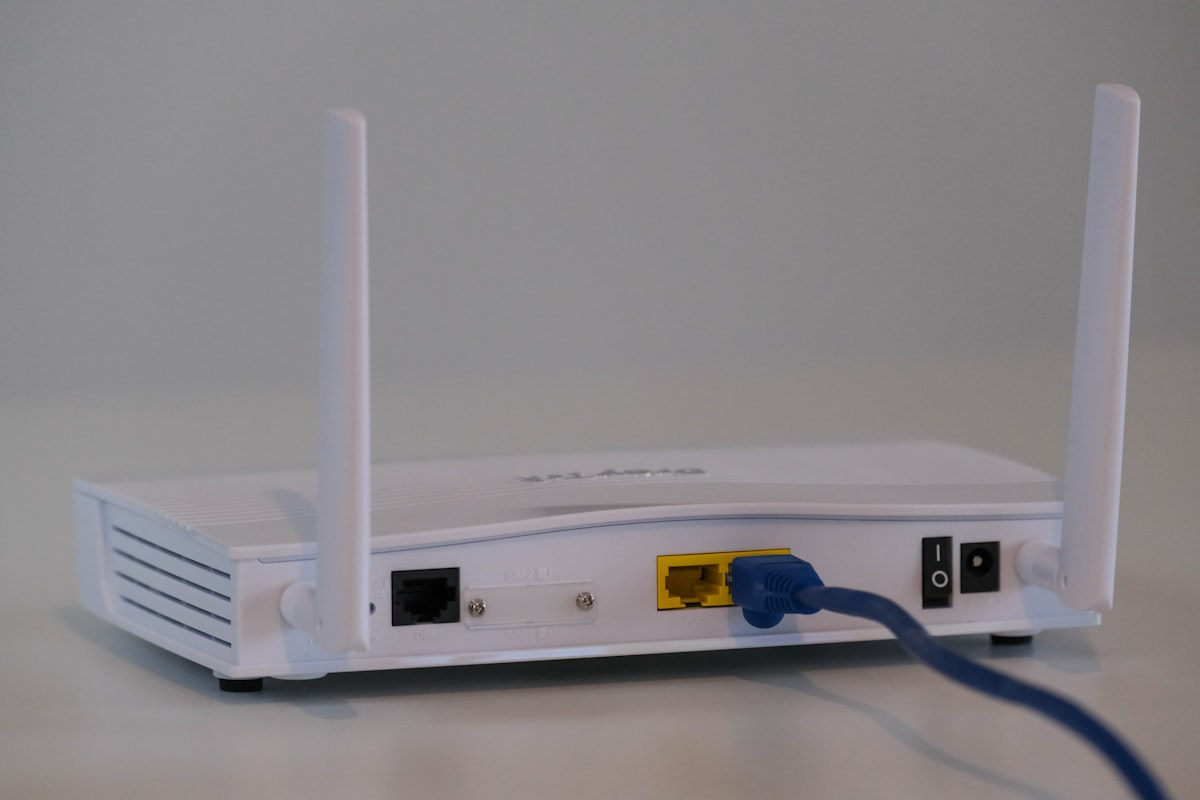
Your internet plan says 500 Mbps. Your phone, sitting ten feet from the router, gets 400 Mbps on a speed test. Your laptop in the bedroom gets 30 Mbps. Your smart TV buffers Netflix. The problem almost never is your ISP — it’s your WiFi setup.
WiFi is radio, and radio is physics. Walls absorb signal. Other devices cause interference. Your router’s default settings are optimized for compatibility, not performance. The good news: most WiFi problems have straightforward fixes that don’t require buying new hardware.
Key Takeaways
- Router placement is the single biggest factor — moving your router to a central, elevated, open location can double your speeds without changing any settings
- Channel congestion is the most common invisible problem — your neighbors’ routers are competing for the same airwaves, and the fix is selecting the right channel
- The 5 GHz and 6 GHz bands are dramatically faster but shorter range — use them for nearby devices, 2.4 GHz for distant ones
- Most ISP-provided routers are mediocre — a $100-200 aftermarket router or mesh system is a significant upgrade
- WiFi 7 is shipping in 2026 but won’t matter for most people yet — WiFi 6 or 6E hardware is the current sweet spot
Step 1: Move Your Router (Seriously)
This is the most effective fix and costs nothing. WiFi signal degrades with every obstacle between the router and your device.
Drywall reduces signal by about 3-4 dB per wall. Brick or concrete cuts 6-10 dB. Metal surfaces (filing cabinets, mirrors, refrigerators) can block signal almost completely. A microwave oven operating at 2.4 GHz generates interference on the same frequency as your WiFi.
The optimal router position is:
- Centrally located in your home, not in a corner or closet
- Elevated — on a shelf or mounted to a wall, at least 4-5 feet off the ground
- In the open — not inside a cabinet, behind a TV, or surrounded by books
- Away from other electronics — especially microwaves, baby monitors, Bluetooth devices, and cordless phones
Most people put their router wherever the ISP tech left it — usually next to the cable entry point, which is often in a corner of the house on the ground floor behind a piece of furniture. This is the worst possible location. If you can’t move the modem (it’s connected to a coax or fiber line), run an Ethernet cable from the modem to a router placed centrally. A 50-foot Ethernet cable costs $10 and can transform your WiFi experience.
Step 2: Understand Your Bands
Modern routers broadcast on multiple frequency bands. Understanding the trade-offs is the key to optimizing your network.
2.4 GHz has the longest range and penetrates walls best, but it’s slow (typically 50-100 Mbps real-world) and congested. Bluetooth, microwave ovens, baby monitors, and every cheap IoT device operates at 2.4 GHz. In an apartment building, you might have 30+ neighboring networks on this band.
5 GHz is faster (200-800 Mbps real-world) with much less congestion, but the range is shorter and wall penetration is weaker. This is the band you should use for most devices that are within 30 feet of your router.
6 GHz (WiFi 6E and WiFi 7) is the newest band, offering the least congestion and highest potential speeds. As of 2026, most devices still don’t support it, but newer laptops, phones, and tablets do. Range is even shorter than 5 GHz — it’s best for devices in the same room or one room away from the router.
Most routers use a feature called band steering that automatically assigns devices to the best band. This usually works well enough. If your router lets you create separate SSIDs for each band (e.g., “HomeWiFi” for 5 GHz, “HomeWiFi-2G” for 2.4 GHz), you can manually assign devices: put your laptop and phone on 5 GHz, put your smart plugs and security cameras on 2.4 GHz.
Step 3: Fix Channel Congestion
Each WiFi band is divided into channels. If your router and your neighbor’s router are both on channel 6, they interfere with each other and both slow down. In dense housing (apartments, townhouses, suburban neighborhoods), channel congestion is often the primary cause of slow WiFi.
For 2.4 GHz, only use channels 1, 6, or 11. These are the only non-overlapping channels. Using channel 3 or 9 causes interference with adjacent channels, making things worse for everyone. Your router should auto-select, but auto-selection algorithms aren’t always smart — they pick the least-congested channel at boot time, not dynamically.
To check congestion, use a WiFi analyzer app (WiFi Analyzer on Android is free; Airport Utility on iOS shows basic info). You’ll see every nearby network and which channels they’re on. Pick the channel with the fewest competing networks.
For 5 GHz, there are many more non-overlapping channels (about 25 in the US), so congestion is rarely a problem. If you’re in a very dense environment, channels in the UNII-3 band (149-165) tend to be less crowded than UNII-1 (36-48) because some older devices don’t support them.
For 6 GHz, congestion is essentially nonexistent right now. Few devices and routers use it. Just leave it on auto.
Most routers let you change the channel in the wireless settings page (typically accessed at 192.168.1.1 or 192.168.0.1 in a browser). Change the 2.4 GHz channel, leave 5 GHz on auto, and see if performance improves.
Step 4: Check Your Router’s Settings
A few settings make a genuine difference. Others are snake oil.
Channel width matters. On 2.4 GHz, use 20 MHz width — wider channels (40 MHz) cause more interference and don’t reliably improve speed. On 5 GHz, use 80 MHz if your router supports it. On 6 GHz, use 160 MHz or 320 MHz (WiFi 7). Wider channels mean faster speeds but slightly reduced range.
QoS (Quality of Service) prioritizes certain traffic types. If video calls are choppy while someone else streams 4K video, QoS can help by giving real-time traffic priority. Most modern routers handle this automatically with SQM (Smart Queue Management), which is more effective than traditional QoS rules. If your router supports fq_codel or CAKE algorithms (OpenWrt-based routers do), enable SQM — it dramatically reduces bufferbloat (the lag that occurs when your connection is heavily loaded).
WPA3 security is the current standard. Use WPA3-Personal if all your devices support it. If some older devices can’t connect, use WPA2/WPA3 mixed mode (sometimes called “transitional mode”). Never use WPA2-TKIP or WEP — they’re insecure and also limit your speeds.
Firmware updates are important and often ignored. Router manufacturers fix bugs, patch security vulnerabilities, and sometimes improve performance through firmware updates. Check quarterly at minimum. If your router hasn’t received a firmware update in over a year, the manufacturer has probably abandoned it and you should consider replacement.
“Gaming mode,” “AI optimization,” and “beamforming+” — mostly marketing. Standard 802.11ax (WiFi 6) beamforming is genuinely useful and is enabled by default. The premium-sounding features that router manufacturers advertise are usually just rebranded standard features or placebo.
Step 5: Consider Your Hardware
If you’ve optimized placement, channels, and settings, and WiFi is still slow, the hardware might be the bottleneck.
ISP-provided routers are typically mediocre. They’re the cheapest hardware that meets minimum requirements, often running outdated firmware with limited configuration options. If you’re paying $10-15/month to rent your ISP’s router (check your bill — many ISPs charge this without making it obvious), buying your own equipment pays for itself within a year.
Budget recommendation ($80-120): TP-Link Archer AX72 or similar WiFi 6 router. Handles a typical home (3-4 people, 20-30 devices) without issues. WiFi 6 (802.11ax) is the current mainstream standard and provides a significant upgrade over WiFi 5 (802.11ac) routers.
Mid-range recommendation ($150-250): ASUS RT-AX86U Pro or similar. Better range, better processor for handling many simultaneous connections, and more configuration options. Supports AiMesh if you later want to add a second unit for coverage.
Mesh system recommendation ($200-400): If you have a larger home (2000+ sq ft) or a layout that makes single-router coverage difficult (multi-story, thick walls, long floor plans), a mesh system is the right answer. The TP-Link Deco XE75 (WiFi 6E mesh) or ASUS ZenWiFi BQ16 Pro (WiFi 7 mesh) are strong options. Mesh systems use multiple nodes that communicate with each other wirelessly, blanketing your home in consistent signal. They’re not faster than a well-placed single router in a small home, but they solve dead zones that no single router can fix.
WiFi 7 (802.11be) routers started shipping in 2024, with broader availability in 2025-2026. They support 320 MHz channels, Multi-Link Operation (MLO) for using multiple bands simultaneously, and peak theoretical speeds of over 40 Gbps. In practice, WiFi 7 matters most for dense, high-demand environments. If you’re buying a new router today and plan to keep it for 5+ years, WiFi 7 is worth considering. If your current router is WiFi 6 and works fine, there’s no urgency to upgrade.
Step 6: Wire What You Can
This is the unsexy truth that WiFi articles don’t emphasize enough: if a device can be connected via Ethernet, connect it via Ethernet. No WiFi optimization will match the reliability and speed of a cable.
Your desktop PC, gaming console, smart TV, and NAS — especially if you’re running a self-hosted home server — should be wired if at all feasible. A Cat 6 Ethernet cable supports 10 Gbps at up to 55 meters — far more than any WiFi connection. A 25-foot Cat 6 cable costs about $8. If running cables through walls isn’t practical, consider:
MoCA adapters use your home’s existing coaxial cable (the same wiring used for cable TV) to create a wired network. MoCA 2.5 supports up to 2.5 Gbps. If you have coax jacks in multiple rooms, MoCA is faster and more reliable than WiFi or powerline adapters.
Powerline adapters use your home’s electrical wiring to transmit data. They’re hit or miss — performance depends entirely on your wiring quality and electrical panel configuration. In some homes they work great; in others they’re barely faster than WiFi. Buy from a retailer with a good return policy.
Every device you move to wired reduces congestion on your WiFi network, improving speeds for the devices that must remain wireless (phones, tablets, laptops).
For more on setting up a robust home network including Ethernet backbone, security, and segmentation, see our home network security guide.
Troubleshooting Persistent Problems
Speed is good on some devices but terrible on others. The device is likely the bottleneck. Older laptops with WiFi 4 (802.11n) or even WiFi 5 (802.11ac) adapters will never match what a WiFi 6 phone achieves. Check your device’s WiFi standard — if it’s pre-2019, the WiFi adapter might be the limiting factor. A USB WiFi 6 adapter ($20-30) can help for desktops; for laptops, internal WiFi cards can sometimes be swapped (check your model).
WiFi drops out intermittently. This is often a router overheating or running out of memory. Feel your router — if it’s hot, improve ventilation (don’t stack it on top of other electronics, don’t put it in an enclosed space). If it’s an older router running many devices, it might simply lack the processing power. A reboot temporarily fixes memory leaks, but if you’re rebooting weekly, it’s time for new hardware.
WiFi is slow only at certain times of day. Likely channel congestion from neighbors who are home at the same time. Run a WiFi analyzer during the slow period and check for overlapping networks. Switching to 5 GHz or changing channels usually resolves this.
Speed test shows fast WiFi but websites load slowly. The issue might be DNS, not WiFi. Your ISP’s default DNS servers are often slow. Switch to Cloudflare (1.1.1.1), Google (8.8.8.8), or Quad9 (9.9.9.9) DNS in your router settings. This changes DNS for all devices on your network. If you’re security-conscious, Quad9 blocks known malicious domains automatically.
Frequently Asked Questions
How many devices can a WiFi router handle?
Most modern routers technically support 30-60+ simultaneous connections, but performance degrades as you add devices. A WiFi 6 router with a decent processor handles 30-40 active devices well. IoT devices (smart plugs, sensors, cameras) use very little bandwidth individually but can cause congestion through constant connection management overhead. If you have 50+ devices, a router with WiFi 6E and a tri-core or quad-core processor (like the ASUS GT-AXE16000 or similar) handles the load better.
Is it worth upgrading to WiFi 7 in 2026?
For most people, not yet. WiFi 7 routers cost $300-700 and most client devices (phones, laptops) don’t support WiFi 7 yet. The performance jump from WiFi 6 to WiFi 7 is real but only matters if your internet connection exceeds 1 Gbps, you’re doing heavy local file transfers, or you have dozens of high-bandwidth devices competing for airtime. WiFi 6 is the sweet spot for value right now.
Do WiFi extenders/repeaters actually work?
They extend range but at a significant cost: the extender must receive the signal and retransmit it, cutting available bandwidth roughly in half. They also add latency. A mesh system is a much better solution — mesh nodes communicate on a dedicated backhaul channel (or via wired backhaul if you connect them with Ethernet), so they don’t halve your speed. If budget is the constraint, a single extender for a dead spot is better than nothing, but a mesh system is better.
Why is my WiFi slow even though the signal strength shows full bars?
Signal strength (RSSI) doesn’t tell the whole story. You can have strong signal but terrible throughput if the channel is congested, the router’s processor is overloaded, or there’s significant interference from non-WiFi sources (microwaves, Bluetooth, baby monitors). Full bars mean the radio link is strong — it doesn’t mean the data path is clear.
Should I separate my 2.4 GHz and 5 GHz into different network names?
It depends. A single SSID with band steering (the default on most modern routers) is simpler and works well for most people — the router decides which band each device uses. Separate SSIDs give you manual control, which is useful if the automatic band steering isn’t working well (some devices stubbornly stick to 2.4 GHz when 5 GHz is available). If you’re not having problems, leave it as a single SSID. If devices are stuck on the wrong band, separate them.